TL;DR
Open Terminal and run winget upgrade to see what is out of date, then winget upgrade --all to update everything in one go. winget is built into Windows 10 and 11. If you prefer buttons, the free UniGetUI app does the same and can update in the background. Close your programs first, and pin any app you do not want touched.
Every program on your computer wants to update itself, and each one does it its own way: a pop-up here, a tray icon there, a “restart to update” button you keep dismissing. Most people click “later” until “later” is a year.
That is the problem this post solves. Windows has a built-in tool, winget, that updates every program at once with one command. If you would rather not type commands, a free app called UniGetUI puts the same thing behind a button, and can do it for you in the background.
Why it matters: old programs are how attackers get in
Out-of-date software is no longer a minor risk. Verizon’s 2026 Data Breach Investigations Report found that 31% of breaches now start with a software vulnerability, ahead of stolen passwords as the top way in.
The US Cybersecurity and Infrastructure Security Agency puts it in one line: “Fix security risks by installing updates and turning on automatic updates.”
Windows Update keeps Windows itself current. It does not update the programs you installed yourself: your PDF reader, 7-Zip, Node.js, the chat app, the design tools. That is what winget is for.
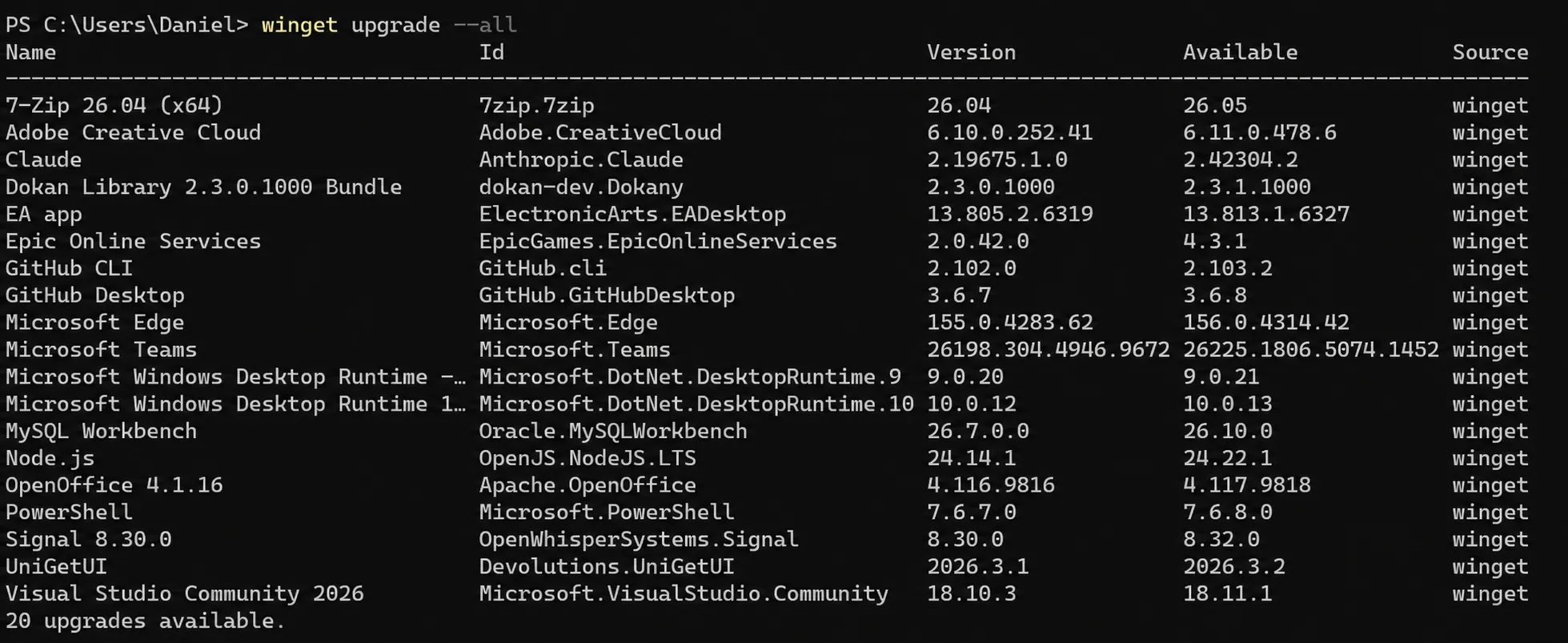
When I ran it on my own PC, 20 programs were out of date, from 7-Zip and Microsoft Edge to Signal, PowerShell and Node.js:
What winget is
winget is the Windows Package Manager, Microsoft’s own command-line tool for installing, updating and removing programs. It comes with App Installer, which is already on Windows 10 (version 1809 or later) and Windows 11, and the Microsoft Store keeps it up to date. It is open source.
To check you have it, open Terminal (right-click the Start button and choose Terminal) and type:
winget --versionIf you see a version number, you are ready. If Windows says winget is not recognized, install or update App Installer from the Microsoft Store, sign out and back in, and try again.
How to update all programs with winget upgrade --all
-
Close the programs you want updated. An update cannot replace a program that is running; winget reports “Application is currently running. Exit the application then try again.”
-
See what is out of date. This only lists, it changes nothing:
winget upgrade -
Update everything:
winget upgrade --allwinget goes down the list and updates each program in turn. Some installers open a window or ask for permission (a User Account Control prompt); answer them as they come.
-
Restart if asked. A few programs, usually system runtimes, finish their update after a restart.
People often type winget update --all. That works too: update is just
another name for upgrade.
The options worth knowing
From Microsoft’s winget upgrade documentation:
| Option | What it does | When to use it |
|---|---|---|
--include-unknown | Also updates programs whose version winget cannot read (listed as Unknown) | When the list says some packages have unknown versions |
--silent | Runs installers without their windows | When you do not want to click through each installer |
--accept-package-agreements | Accepts each program’s license without asking | For unattended runs |
--accept-source-agreements | Accepts the source’s terms without asking | For unattended runs |
--include-pinned | Also updates programs you pinned (see below) | Rarely; when you want everything |
--id <id> -e | Updates one program by its exact id | When you only want one |
Put together, this updates everything, including the unknowns, without stopping to ask:
winget upgrade --all --include-unknown --silent --accept-package-agreements --accept-source-agreementsThe no-command way: UniGetUI
UniGetUI is a free, open-source app (MIT license) that puts winget, and other package managers, behind a normal window with buttons. It used to be called WingetUI. Marti Climent created it, and Devolutions, a security software company, took it over in March 2026.
What it adds on top of winget:
- One list of every update from winget, Scoop, Chocolatey, PowerShell, npm, pip, Cargo, .NET tools and more, so developer tools are covered too.
- Update all, or pick and choose, with a skip or ignore option per program.
- Automatic updates: it can check for updates on a schedule and install them in the background, with a tray icon and notifications.
- A backup of your program list, so you can reinstall everything on a new PC.
To install it, use the Microsoft Store, the official page, or winget itself:
winget install --exact --id Devolutions.UniGetUI --source wingetDownload it only from those places. The project warns that wingetui.com
and unigetui.com are fake sites run by someone else.
Then open UniGetUI and go to its updates page. It lists every program with an update waiting; select them all and update. In its settings you can turn on automatic update checks and installs, so you do not have to remember.
Tips and tricks
-
Skip a program you do not want touched. Some updates break things, or you need to stay on a version for a while. Pin it:
winget pin add --id Microsoft.PowerToysA pinned program is skipped by
winget upgrade --allbut can still be updated on its own. Add--blockingto stop winget updating it at all,--version 0.70.*to hold it to a version range,winget pin listto see your pins andwinget pin remove --id ...to undo one. A pin only affects winget: the program can still update itself. -
Programs that update themselves. Browsers, Adobe Creative Cloud and game launchers such as Steam, EA and Epic often have their own updaters. winget may skip some of them or show them again and again. Let their own updater handle them, or pin them.
-
Admin or not. In a normal Terminal window, installers that need admin rights ask for permission. In an administrator window they do not ask, so use one only when you trust everything on the list. A few installers refuse to run as administrator at all.
-
Moving to a new PC. Save your program list with
winget export -o apps.json, copy the file over, and runwinget import -i apps.jsonon the new machine. Programs winget cannot match to a source are left out, with a warning. -
When something fails. Add
--logsto open the log folder afterwards. If some updates fail,winget upgrade --allfinishes with the code0x8A15002C(“completed with failures”), andwinget error <code>explains any code in plain words. The usual ones:
| Code | What it means | What to do |
|---|---|---|
0x8A150101 | The program is running | Close it and run the command again |
0x8A150109 | A restart is needed to finish | Restart the PC |
0x8A150019 | The command needs administrator rights | Run Terminal as administrator |
0x8A150068 | The program is pinned | Unpin it, or use --include-pinned |
0x8A150050 | The version is unknown | Add --include-unknown |
Can winget update automatically?
Not by itself. Microsoft does not offer a built-in schedule for
winget upgrade --all, and the winget command cannot run as the Windows
SYSTEM account, which is how many scheduled tasks run. You can set up a
Windows Task Scheduler job that runs the command as your own user, but for
most people UniGetUI’s automatic updates are the simpler answer.
On a Mac or Linux
The same idea exists everywhere:
- Mac with Homebrew:
brew update, thenbrew upgrade. Add--greedyto include apps that normally update themselves. - Mac App Store apps: the community tool
mas lists and updates them with
mas outdatedandmas upgrade. - Ubuntu and Debian:
sudo apt update && sudo apt upgrade, from the Ubuntu documentation.
If you look after other people’s computers
For a small office, the same two tools scale down nicely: run
winget upgrade on each PC once a month, or install UniGetUI with
automatic updates turned on and check its list now and then. Pin the one or
two programs a business depends on (the accounting software, a line of
business app) so an update never lands on them by surprise, and update those
by hand after you have read their release notes.
If an update cannot install because the drive is full, find what is taking up space on your PC before trying again.
Keeping programs current closes known vulnerabilities that attackers can otherwise keep using.
Sources
Frequently asked questions
What is the difference between winget update and winget upgrade?
winget update and winget upgrade?None. update is an alias for upgrade, so winget update --all and winget upgrade --all do the same thing. Microsoft's documentation uses upgrade.
Is winget safe?
winget is Microsoft's own package manager, open source and built into Windows as part of App Installer. It downloads each program from the source listed in its manifest. Run it in an administrator window only for programs you trust: there, installers that need admin rights do not ask first.
What does winget upgrade --all --include-unknown do?
winget upgrade --all --include-unknown do?Some programs do not report their version, so winget lists them as Unknown and skips them. --include-unknown updates them anyway. It is safe for most programs; if one misbehaves afterwards, pin it.
How do I stop winget from updating one program?
Pin it: winget pin add --id <the app's id>. A pinned app is skipped by winget upgrade --all but can still be updated on its own. Add --blocking to stop every winget upgrade of it, and use winget pin remove to undo.
Is UniGetUI safe, and where do I download it?
UniGetUI is free and open source (MIT), created by Marti Climent and maintained by Devolutions since March 2026. Get it from devolutions.net, the Microsoft Store, GitHub, or with winget install --exact --id Devolutions.UniGetUI --source winget. The project warns that wingetui.com and unigetui.com are fake sites not run by them.
Can winget update my programs automatically?
Not on its own. Microsoft does not offer a built-in schedule for winget upgrade --all. UniGetUI can check for and install updates in the background on a schedule, which is the easier way to automate it.
Why does the same program keep showing up as needing an update?
Usually because the program updates itself, reports its version in a way winget cannot match, or left an old entry in the installed apps list. Update it through its own updater, or pin it in winget so it stops appearing.
How do I update all apps on a Mac or Linux?
On a Mac with Homebrew, run brew update, then brew upgrade. On Ubuntu or Debian, run sudo apt update && sudo apt upgrade.