TL;DR
Start with Settings, System, Storage: it shows what each category uses and offers Cleanup recommendations. To see exact files and folders, search File Explorer for size:>1GB, or run a free disk space analyzer such as WizTree or WinDirStat. Never delete the WinSxS folder or the page file by hand; use the cleanup tools Windows provides.
The warning always arrives at a bad time: “Low disk space”, an update that will not install, a PC that has slowed to a crawl. Microsoft lists both symptoms on its own support page: when a PC runs out of storage, “you may notice slower performance or trouble installing Windows updates.”
The hard part is not deleting files. It is knowing which files. A drive fills up slowly, a few gigabytes at a time, in folders you never open. This post shows how to find what is taking up space on your PC, from the tool already built into Windows to free disk space analyzers that draw you a map of the whole drive, and what is safe to remove once you find it.
How much space Windows needs
Windows 11 needs a 64 GB or larger drive, and Microsoft adds that “it is important to ensure you have enough free storage space to install updates.” According to Microsoft’s update storage guidance, feature updates typically need 6 to 11 GB or more of free space, and the monthly quality updates 2 to 3 GB or more. If your drive has less than that free, the cleanup below is not optional.
Start with Windows’ own Storage page
The quickest overview is already on your PC:
- Open Start, then Settings, System, Storage.
- Windows shows how much each category uses: installed apps, temporary files, system and reserved space, and more. Select Show more categories to see the rest.
- Select a category to see what is in it.
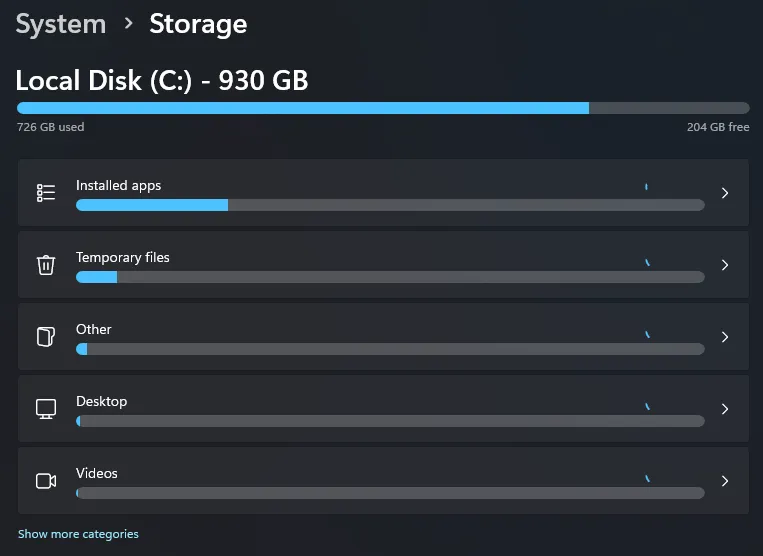
This is my own PC: 726 GB of a 930 GB drive used, and installed apps the biggest category by far. The page takes a moment to add everything up, so give the bars a few seconds to settle.
Below that, Cleanup recommendations groups the easy wins into Temporary files, Large or unused files, Files synced to the cloud and Unused apps. Tick what you no longer need and select Clean up for each section. Microsoft’s free up drive space guide walks through each one.
Let Storage Sense keep it clean
On the same page, set Storage Sense to On, then open it to choose how often it runs and what it may remove: files that have sat in the Recycle Bin, files in Downloads you have not opened for a while, and cloud files that can go back to online-only. It works on the system drive only, and only for your user account (Storage Sense settings).
The older Disk Cleanup tool is still in Windows too: search for “disk cleanup”, pick the drive, and select Clean up system files to include old Windows update files.
Find large files with File Explorer
The Storage page tells you which category is big. To see the actual files:
- Open File Explorer, select This PC or the C: drive, and click in the search box.
- Type
size:>1GBand press Enter. Windows lists every file over 1 GB. Usesize:>500MBfor a wider net. - Switch the view to Details and click the Size column to sort the biggest first. Right-click a result and choose Open file location to see the folder it lives in.
Some of the biggest space users are hidden. To see them, select View, then Show, then Hidden items (Microsoft’s steps).
Microsoft notes that the Videos, Music, Pictures and Downloads folders usually contain the largest files, so look there first.
Use a free disk space analyzer
File Explorer shows files, but not which folders add up to the most. A disk space analyzer scans the whole drive and draws it as a map, where every block is a file and the biggest blocks are what to look at first. These are the four best-known free ones for Windows:
| Tool | Free for | Business use | Install with winget |
|---|---|---|---|
| WinDirStat | Everyone (open source, GPL) | Free | winget install --exact --id WinDirStat.WinDirStat |
| WizTree | Personal use | Paid supporter code, from $100 for up to 5 staff | winget install --exact --id AntibodySoftware.WizTree |
| TreeSize Free | Private, non-commercial use | Paid TreeSize Personal or Professional | winget install --exact --id JAMSoftware.TreeSize.Free |
| SpaceSniffer | Freeware | Terms not stated | winget install --exact --id UderzoSoftware.SpaceSniffer |
Business terms are from each vendor’s site, checked 23 October 2026. If you are not sure how to run a winget command, my post on updating all your programs at once explains winget from the start.
WizTree or WinDirStat?
WizTree is the fast one. On a normal Windows drive it reads the drive’s master file table directly instead of opening every folder one by one, which makes it much quicker on a full drive. It is free for personal use only; a business needs a supporter code, priced by company size.
WinDirStat is slower but open source and free for anyone, including businesses, and it is still actively updated (version 2.9.3 came out on 11 October 2026). Download it only from windirstat.net, its GitHub page or winget: the project has warned about download pages it does not control.
Whichever you pick, the steps are the same: run it, choose the C: drive, wait for the scan, then click the largest blocks or sort by size to see the folders taking the most space.
For power users: PowerShell
PowerShell can list the 20 largest files in your user folder, with their size in gigabytes:
Get-ChildItem -Path "$env:USERPROFILE" -Recurse -File -ErrorAction SilentlyContinue |
  Sort-Object -Property Length -Descending |
  Select-Object -First 20 FullName, @{Name='GB';Expression={[math]::Round($_.Length/1GB,2)}}
And the size of each folder inside it, biggest first:
Get-ChildItem -Path "$env:USERPROFILE" -Directory | ForEach-Object {
  [pscustomobject]@{
    Folder = $_.FullName
    GB = [math]::Round(((Get-ChildItem -LiteralPath $_.FullName -Recurse -File -Force -ErrorAction SilentlyContinue |
      Measure-Object -Property Length -Sum).Sum) / 1GB, 2)
  }
} | Sort-Object GB -Descending
Both only read; they change nothing. Microsoft’s own Sysinternals Du does the folder sizes from a Command Prompt too.
Why is my C drive full? The usual space hogs
Once you know where the space went, this is what it usually is, and how to deal with it safely:
| What | Where | What to do |
|---|---|---|
| Downloads | Your Downloads folder | Sort by size and delete what you no longer need; empty the Recycle Bin afterwards, which is permanent |
| Previous Windows installation | Kept for 10 days after an upgrade | Settings, Storage, Temporary files, “Previous version of Windows”. You can no longer roll back afterwards |
| Hibernation file | hiberfil.sys, about the size of your RAM | powercfg.exe /hibernate off in an administrator Command Prompt removes it; hybrid sleep stops working |
| Page file | pagefile.sys | Leave it system-managed. Windows needs it |
| Windows component store | C:\Windows\WinSxS | Never delete it. Run Dism.exe /online /Cleanup-Image /StartComponentCleanup as administrator |
| OneDrive files | Your OneDrive folder | Right-click, Free up space, to keep them online only. Deleting an online-only file deletes it everywhere |
| iPhone and iPad backups | %USERPROFILE%\Apple\MobileSync\Backup | Apple Devices app, General, Manage Backups. A deleted backup cannot be recovered |
| Outlook mail cache | The .ost file | Keep fewer months offline: in classic Outlook, File, Account Settings, then the slider |
| Docker | Images and build cache | docker system prune removes unused data; add -a for unused images |
| WSL (Linux on Windows) | An ext4.vhdx file in AppData | Do not touch it with Windows tools; clean up inside Linux |
Sources for each row: Microsoft’s pages on the previous Windows version, hibernation, the page file, WinSxS, OneDrive, Outlook and WSL; Apple’s on device backups; Docker’s on pruning.
The rule that covers all of them: delete your own files freely, and clean Windows’ files only with Windows’ own tools.
On a Mac
Choose Apple menu, System Settings, General, Storage. macOS shows each category and offers Store in iCloud, Optimize Storage (removes watched Apple TV movies and shows, keeps only recent email attachments) and Empty Trash Automatically (after 30 days). Each category has an info button to manage it, and the space from deleted files only comes back once you empty the Trash (Apple’s guide).
If you look after a small office
Check each PC’s Storage page every few months and turn on Storage Sense everywhere. For a deeper look, WinDirStat is the analyzer you can use on work computers without a license; WizTree and TreeSize Free need a paid license in a business. And when a drive is still full after a cleanup, the honest answer is often a bigger drive: storage is cheap compared with an afternoon lost to a PC that will not update.
Sources
- Microsoft’s update storage guidance.
- free up drive space guide.
- Storage Sense settings.
- Microsoft’s steps.
- WinDirStat.
- WizTree.
- TreeSize Free.
- SpaceSniffer.
- supporter code.
- Sysinternals Du.
- the previous Windows version.
- hibernation.
- the page file.
- WinSxS.
- OneDrive.
- Outlook.
- WSL.
- device backups.
- pruning.
- Apple’s guide.
Frequently asked questions
Why is my C drive full?
Usually the Downloads, Videos, Pictures and Music folders, then things you cannot see in File Explorer: the hibernation file (about the size of your RAM), System Restore points, a previous Windows installation kept for 10 days after an upgrade, phone backups, and for developers, WSL and Docker disks. Settings, System, Storage shows which category is large; a disk space analyzer shows the exact folders.
How much free space does Windows need?
Microsoft says feature updates typically need 6 to 11 GB or more of free space and monthly quality updates 2 to 3 GB or more. Windows 11 needs a 64 GB or larger drive. Low space can also make a PC slower.
Is it safe to delete temporary files in Windows?
Mostly, through Windows' own cleanup: Settings, System, Storage, Temporary files or Cleanup recommendations. Look before you tick: Downloads may hold files you still want, emptying the Recycle Bin is permanent, and removing the previous version of Windows means you can no longer roll back an upgrade.
Can I delete the WinSxS folder?
No. Microsoft says not to delete it: doing so can stop Windows from booting or updating. To shrink it, run Dism.exe /online /Cleanup-Image /StartComponentCleanup in an administrator window, or use the update cleanup option in Disk Cleanup.
WizTree or WinDirStat: which is better?
WizTree is faster on most PCs because it reads the drive's file table directly, but it is free only for personal use; businesses need a paid supporter code. WinDirStat is slower but free and open source (GPL) for anyone, including businesses.
Is WinDirStat safe?
Yes, when you get it from windirstat.net, its GitHub page, or winget (winget install --exact --id WinDirStat.WinDirStat). It is open source under the GPL. The project has warned about download pages it does not control, so avoid third-party download sites.
Can I delete hiberfil.sys?
Not directly, but you can turn hibernation off with powercfg.exe /hibernate off in an administrator Command Prompt, which removes the file. Hybrid sleep stops working, and you lose hibernation's protection if the power fails.
How do I see what is taking up space on a Mac?
Choose Apple menu, System Settings, General, Storage. It shows each category with recommendations such as Store in iCloud, Optimize Storage and Empty Trash Automatically.